How to Move a Collectr Collection Into Another App
What BinderDex imports from Collectr, the exact steps, and what you still need to check.
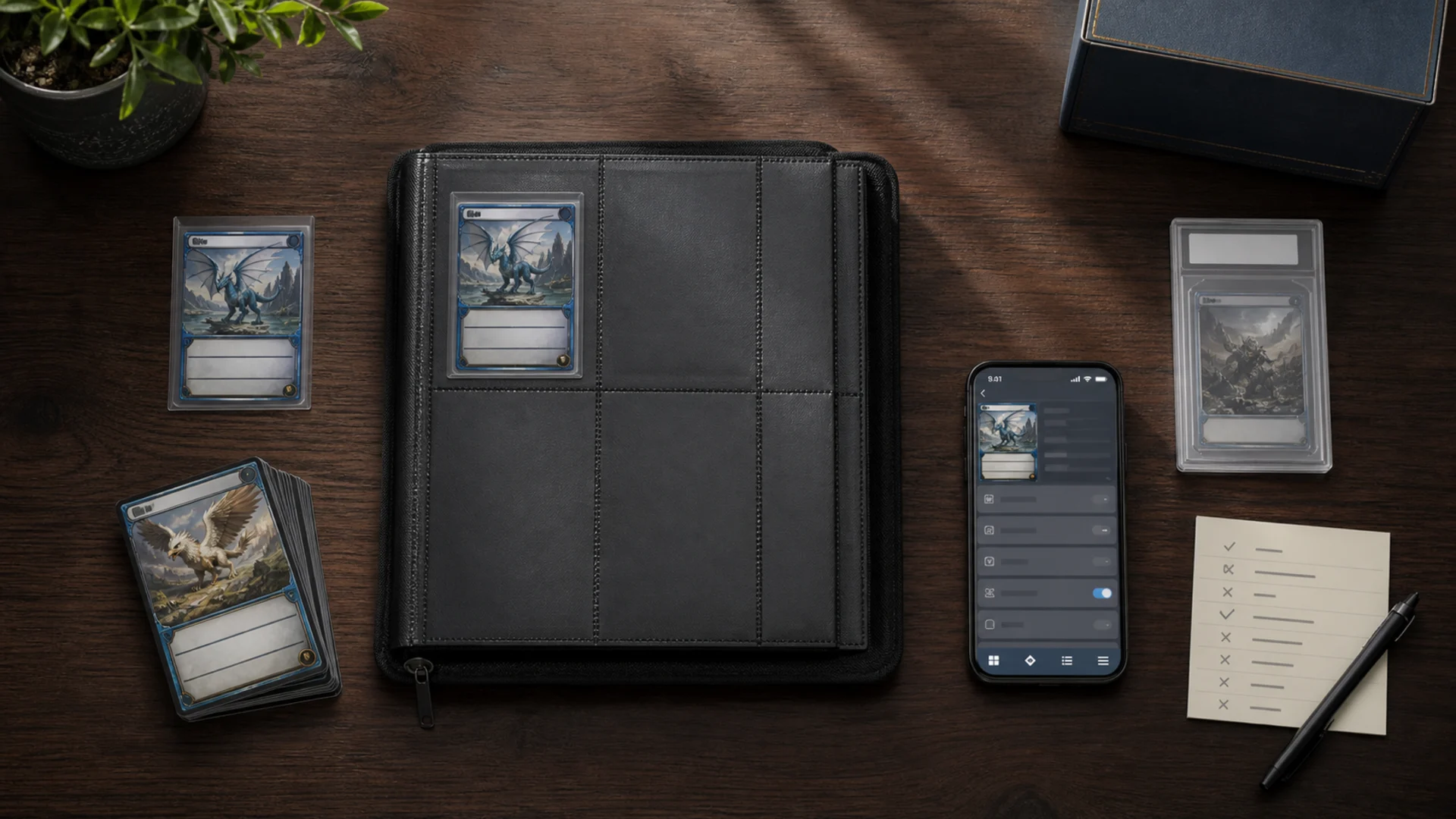
To move a Collectr collection into BinderDex, turn on your public Showcase in Collectr, copy the Showcase link, and paste it into the BinderDex import. The BinderDex app imports the raw cards, graded cards, and sealed products on a public Collectr Showcase link, and lets you review the matches before anything is added. It does not read a Collectr CSV file, and cost basis is not imported.
- Route that works: a public Collectr Showcase link, not a file
- Carries over in the app: raw cards with quantity and condition, PSA, BGS, and CGC slabs with whole-number grades, and sealed products, when each matches the BinderDex catalog
- Does not carry over: half grades and special labels, purchase price, purchase dates, notes
- You review the matches first. Nothing is added until you confirm
What Collectr lets you take out
Collectr lists data export as a PRO feature. Its PRO page names "Seamless Export" and describes it as exporting your entire collection from the app. That page does not describe an import route into other apps, and it does not say which file format other apps should expect.
Collectr's public Showcase is different. It is a shareable view of your portfolio that you switch on yourself, and BinderDex reads that public view.
Does BinderDex import a Collectr CSV?
No. BinderDex does not accept a Collectr CSV file. The only Collectr import in BinderDex reads a public Showcase link. BinderDex Pro members can export their holdings to a CSV file from the mobile app, but that is an export from BinderDex, not an import into it.
If you only have a CSV file, turn on the Showcase for the same portfolio and use the link instead.
Steps: import a Collectr Showcase into BinderDex
The BinderDex mobile app requires a BinderDex Pro subscription. To see what would import before you subscribe, start with the web preview described after these steps.
- In Collectr, open your profile and turn on "Public Showcase" if it is not already on.
- Copy the Showcase link, or note your Collectr username.
- In the BinderDex mobile app, open Portfolio and tap Import. Paste the link, or enter your username. A username is expanded to the standard Showcase address.
- Wait while BinderDex reads the Showcase. Larger Showcases can take a few minutes. Your portfolio does not change during this step.
- Review the preview. It lists the cards and products BinderDex matched and shows the unmatched and unsupported counts.
- If your BinderDex portfolio already has cards, confirm that the Collectr copies should be added alongside them. The import adds new copies and does not replace what you have.
- Confirm to add the matched cards to your portfolio.
You can also start on the web. The Collectr alternative page has an "Import a public Collectr Showcase" button that shows a preview first. Signing in or creating an account is the step that claims it, and a web preview is kept for 24 hours before it expires.
What carries over and what does not
| Collectr data | In BinderDex |
|---|---|
| Raw cards | Imported when BinderDex finds an exact catalog match. Unmatched cards are listed and not added. |
| Quantity | Kept. A row with quantity 3 becomes three copies. |
| Condition | Kept for Mint, Near Mint, Lightly Played, Moderately Played, Heavily Played, and Damaged. |
| Finish | Kept for Normal, Holofoil, Reverse Holofoil, Cosmos Holo, and 1st Edition. A finish outside this list stops the claim instead of being guessed. |
| Graded cards | Imported in the app for PSA, BGS, and CGC with whole-number grades 1 to 10. Half grades and labels such as Black Label, Pristine, and Authentic are shown as unsupported. |
| Sealed products | Imported in the app, one record per sealed copy, when the product matches the BinderDex catalog. |
| Cost basis and dates | Not available. A public Showcase does not include them. |
| Private notes | Not available for the same reason. |
Graded and sealed rows appear in the preview as, for example, "PSA 10" or "Sealed", without a price.
The web preview on the Collectr alternative page reads raw cards only and lists graded and sealed items as unsupported. Import from the app to bring them in. If the app cannot read your Showcase from your phone, BinderDex reads it on its own servers instead, and that route also brings raw cards only.
Importing the same Showcase again adds only the copies that were not imported before. It never removes anything. The preview on a repeat import still counts every matched copy, so its total can look larger than what is added. The completion screen shows how many copies were actually added. If you renamed the portfolio in Collectr, BinderDex treats it as already imported and stops.
The importer reads Showcases up to 10,000 rows and 25,000 copies. Private Showcases cannot be read. If Collectr changes its public page, an import can fail and nothing is added.
How to check the result
A moved collection is only useful if the records are right. After the import:
- Compare the preview counts with Collectr. Matched, unmatched, and unsupported should account for the portfolio you moved.
- Spot check ten cards, including the ones you care about most. Confirm the set, collector number, and finish.
- Check a card with a quantity above one, and one that is not Near Mint.
- Check your graded cards and sealed products. Add any that the preview listed as unsupported or unmatched by hand.
- Keep your Collectr records until these checks are done.
Other apps also accept Collectr exports
BinderDex is not the only place a Collectr collection can go. Other collection apps publish their own pages about accepting Collectr exports, and the file format, plan requirements, and supported fields differ between them. We have not tested them for this guide. Read each app's import page and run a small test first. The scanner app comparison lists which apps document export and plan limits.
FAQ
Can I export my Collectr collection to a CSV file?
Collectr lists export under PRO. Check the current plan terms in the Collectr app. A CSV file is not the BinderDex route in any case, because BinderDex imports from a public Showcase link.
Does BinderDex import a Collectr CSV?
No. BinderDex does not read a Collectr CSV file. It reads a public Collectr Showcase link and shows a preview before you add anything.
Will my graded cards and sealed products move over?
Yes, when you import from the BinderDex app. PSA, BGS, and CGC slabs with whole-number grades and sealed products that match the BinderDex catalog are added. Half grades and special labels are listed as unsupported, so add those yourself. The web preview brings raw cards only. If you imported before October 7, 2026, import the same Showcase again to add the graded and sealed copies you are missing.
Does the import keep what I paid for each card?
No. Cost basis, purchase dates, and notes are not part of a public Showcase, so they cannot be imported. Re-enter them in BinderDex if you track them.
What to watch next
- Read the BinderDex and Collectr comparison for the collection workflow side by side.
- Use the Pokemon card collection tracker guide to decide which fields to keep.
- Use the scanner app comparison to check which apps document export and plan limits.
Know exactly what is in your collection.
Download BinderDex on iPhone or Android to track exact printings, organize your binders, and follow card and sealed product values in one place.
Prefer mobile?